I prefer to write in plain text using Notepad++ so I had to find a way to make this work with WordPress.
I installed WP-Markdown from the WordPress plugin list, and then switched it on by going to the Settings – Writing page and ticking next to Posts and Pages. The help bar is useful to have, so I ticked that as well. As I will sometimes post source code, I ticked the Prettify option to have any code syntax highlighted.
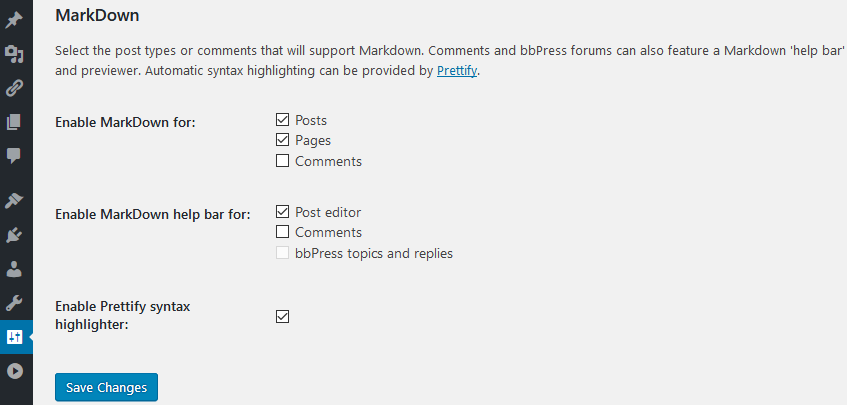
The usual WordPress visual and text editors are replaced by a Markdown editor where text can be pasted from Notepad++. As far as I can see existing posts will be converted to Markdown if you edit them, but as I only have a few posts this was not too much of a concern for me (YMMV!).
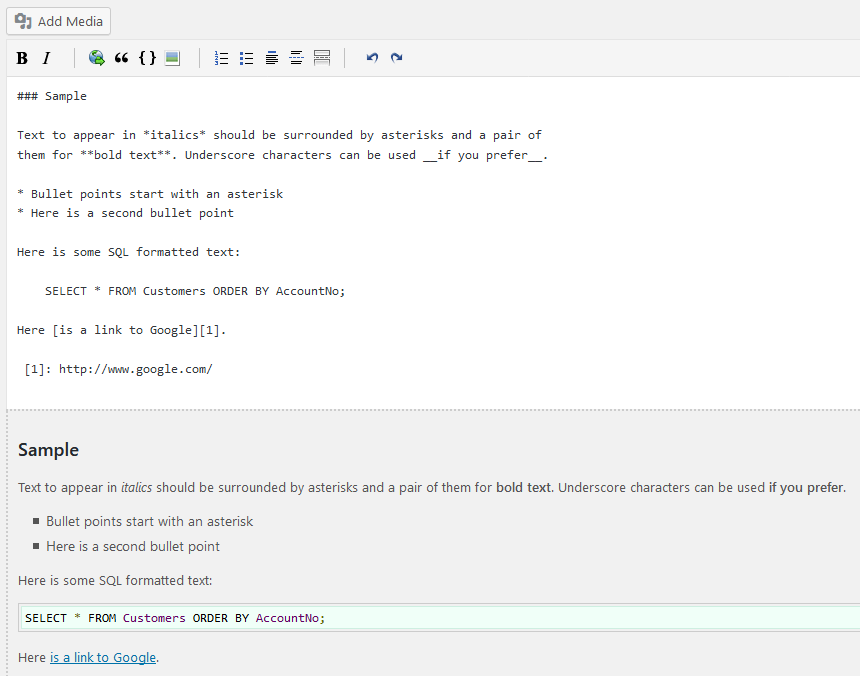
When writing a post, the help bar allows direct editing of the text and a preview of the formatted text appears beneath the editing area.
Below is a short sample of some of the formatting supported (ignore the syntax highlighting – don’t think it understands Markdown!).
### Markdown example

Paragraphs are made by joining
all of the text that appears between
blank lines.

Text to appear in *italics* should be surrounded by asterisks and a pair of
them for **bold text**. Underscore characters can be used __if you prefer__.

*   Bullet points start with an asterisk

*   The bullet point above had one line, but bullets can consist of
    multiple paragraphs of text.

    Extra paragraphs should be indented by a tab or 4 spaces.

*   These points are separated by blank lines so will be wrapped in `<P>` tags

Now for some numbers:
1. numbered items start with a number, a dot and at least one space
1. note that the items are numbered automatically
1. there are no blank lines between these items, so they will not be wrapped
   in `<P>` tags

Blocks of code can be included by indenting by a tab or at least 4 spaces.
Here is some C code:

    #include <stdio.h>

    int main(void)
    {
      printf("Hello Pelles C World\n");
      return 0;
    }

Links are made with square brackets for the link text and round brackets for
the address [like this link to Google](http://www.google.com/) or by using
a second pair of square brackets like this [link to Google][2] and listing
the address later.

Images can be included by using syntax similar to links but with
an exclamation mark. Start with the ALT text, then the index of the
thumbnail and then the index of the full image.

[![Screenshot of the WP-Markdown editor][3]][4]
Here are the results of the above text formatted by WP-Markdown.
Markdown example
Paragraphs are made by joining all of the text that appears between blank lines.
Text to appear in italics should be surrounded by asterisks and a pair of them for bold text. Underscore characters can be used if you prefer.
-
Bullet points start with an asterisk
-
The bullet point above had one line, but bullets can consist of multiple paragraphs of text.
Extra paragraphs should be indented by a tab or 4 spaces.
-
These points are separated by blank lines so will be wrapped in
<P>tags
Now for some numbers:
- numbered items start with a number, a dot and at least one space
- note that the items are numbered automatically
- there are no blank lines between these items, so they will not be wrapped in
<P>tags
Blocks of code can be included by indenting by a tab or at least 4 spaces. Here is some C code:
#include <stdio.h>

int main(void)
{
  printf("Hello Pelles C World\n");
  return 0;
}
Links are made with square brackets for the link text and round brackets for the address like this link to Google or by using another pair of square brackets like this second link to Google and listing the address later.
Images can be included by using syntax similar to links but with an exclamation mark. Start with the ALT text, then the index of the thumbnail and then the index of the full image.
Here is the full Markdown syntax reference.